
Notice
Recent Posts
Recent Comments
Link
| 일 | 월 | 화 | 수 | 목 | 금 | 토 |
|---|---|---|---|---|---|---|
| 1 | 2 | |||||
| 3 | 4 | 5 | 6 | 7 | 8 | 9 |
| 10 | 11 | 12 | 13 | 14 | 15 | 16 |
| 17 | 18 | 19 | 20 | 21 | 22 | 23 |
| 24 | 25 | 26 | 27 | 28 | 29 | 30 |
| 31 |
Tags
- 백준온라인저지
- 백준
- 개발자북클럽
- 타입스크립트
- 최단경로
- 프로그래머스
- 이진탐색
- SQL
- 이것이코딩테스트다
- 코딩일기
- 구현
- BOJ
- 다이나믹프로그래밍
- 빅데이터분석
- react-native
- 코테
- 코딩테스트
- TS
- Typescript
- 정렬
- ps
- dfs
- bfs
- 그리디
- 알고리즘
- c++
- 앱개발
- DP
- 노마드코더
- 이코테
Archives
- Today
- Total
한량처럼 살고 싶다
맨날 까먹는 prettier + eslint 설정법 본문
가끔 json파일을 직접 건드려야 할 때가 있다.
에어비엔비 코드 컨벤션 사용 기준이다.
.eslintrc
{
    "parser": "@typescript-eslint/parser",
    "extends": [
      "plugin:react/recommended",
      "plugin:@typescript-eslint/recommended"
    ]
  }
.eslintrc.json
{
  "root": true,
  "env": {
    "browser": true,
    "es2021": true,
    "node": true
  },
  "extends": [
    "airbnb",
    "airbnb/hooks",
    "plugin:@typescript-eslint/recommended",
    "plugin:prettier/recommended"
  ],
  "parser": "@typescript-eslint/parser",
  "parserOptions": {
    "ecmaVersion": "latest",
    "sourceType": "module",
    "ecmaFeatures": {
      "jsx": true
    },
    "project": "./tsconfig.json"
  },
  "plugins": ["react", "@typescript-eslint", "prettier"],
  "rules": {
    "prettier/prettier": ["error"],
    "react/react-in-jsx-scope": "off",
    "react/jsx-filename-extension": [
      "warn",
      { "extensions": [".tsx", ".ts", ".jsx", ".js"] }
    ],
    "import/no-extraneous-dependencies": ["error", { "devDependencies": true }],
    "no-console": "warn",
    "no-unused-vars": "warn",
    "@typescript-eslint/no-unused-vars": "warn"
  },
  "settings": {
    "react": {
      "version": "detect"
    },
    "import/resolver": {
      "typescript": {},
      "node": {
        "extensions": [".js", ".jsx", ".ts", ".tsx"]
      }
    }
  }
}
.prettierrc
{
  "singleQuote": true,
  "trailingComma": "all",
  "printWidth": 80,
  "tabWidth": 2,
  "semi": true
}
eslint.config.js
import js from '@eslint/js'
import globals from 'globals'
import reactHooks from 'eslint-plugin-react-hooks'
import reactRefresh from 'eslint-plugin-react-refresh'
import tseslint from 'typescript-eslint'

export default tseslint.config(
  { ignores: ['dist'] },
  {
    extends: [js.configs.recommended, ...tseslint.configs.recommended],
    files: ['**/*.{ts,tsx}'],
    languageOptions: {
      ecmaVersion: 2020,
      globals: globals.browser,
    },
    plugins: {
      'react-hooks': reactHooks,
      'react-refresh': reactRefresh,
    },
    rules: {
      ...reactHooks.configs.recommended.rules,
      'react-refresh/only-export-components': [
        'warn',
        { allowConstantExport: true },
      ],
    },
  },
)
다음은 vscode 설정
file 탭 클릭 -> preference 클릭 -> settings 클릭
1) 저장버튼 누를 때마다 자동 포맷팅하기
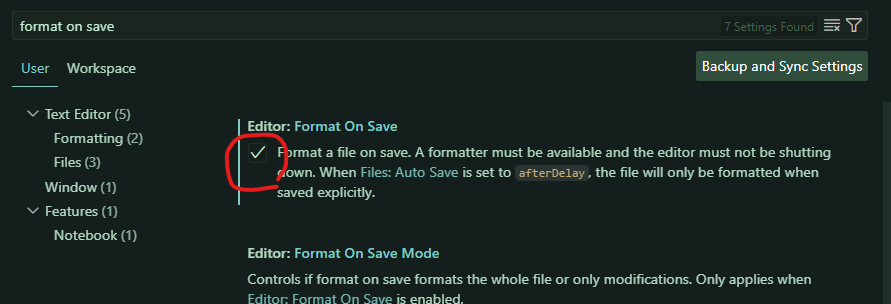
검색창에 format on save 를 입력하면 Editor: Format On Save 나와있다. 체크해주면 된다.
2) default formatter 설정하기
저장(컨트롤s)했는데도 prettier 가 작동을 안 해요! => default formatter 설정을 해주면 해결된다.
settings 에서 default formatter 를 검색한 뒤, 아래 사진처럼 prettier를 골라주면 된다.
만약 이게 되어 있는데도 저장 시 포맷팅이 안 된다면 다른 문제일 수 있다 ㅜ

3) javascript/typescript format
마찬가지로 javascript format 검색한 뒤 enable/disable 부분에 체크 해제해주자.
이제부턴 개인 설정으로 format 하기 때문이다.
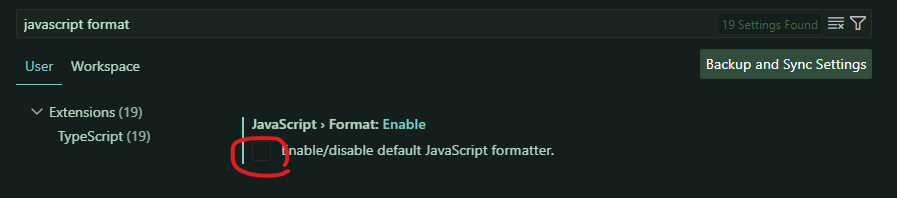
typescript format 도 검색해서 체크 해제해주면 된다.

새로운 환경에서 vscode 쓸 때마다 삽질하지 않길